

Today’s blog ties in with last weeks blog on Model Space, Sheet Space and Viewports. If you use a lot of Viewports in your drawings, then you will often have overlaid or “Nested” Viewports. Moving between them can be frustrating to say the least! It can be very difficult to select Viewports when they are completely surrounded by another Viewport. You can see an example of this in the image below. Both yellow outlines are Viewport boundaries. Why did I do this? I can’t remember, I must have had a good reason!
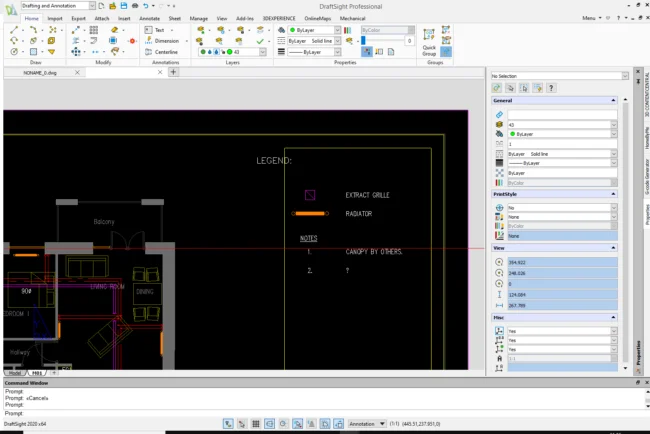
As I said – switching between Nested Viewports can be frustrating…unless you know the quick and easy keyboard command to do so. If you hold down Ctrl and press R, you can switch between the Viewports. You can see the command in action in the video below.
That’s how to switch between Nested Viewports in DraftSight quickly and easily. If you’ve ever come across them, you’ll now be able to switch between them with ease!
Learn more about DraftSight here.