
Sometimes you might need to reset DraftSight back to default settings. Maybe a user had customized it and has now left the firm and you just want vanilla DraftSight, or perhaps a plugin has messed up a menu. Regardless, you want DraftSight back to factory settings. So, how do you do this? Let me explain.
First, ensure that DraftSight is not running.
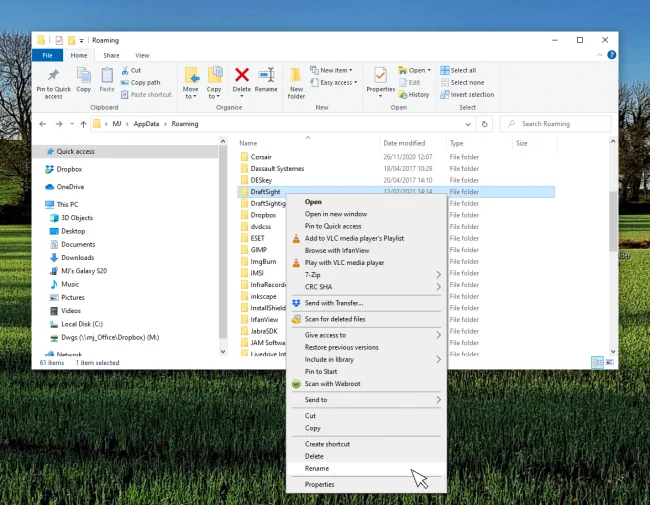
Next, in Windows, open a File Explorer window and browse to this location: C:Users[username]AppDataRoaming. If the AppData folder is not visible, it can be shown using the folder options in the File Explorer options : View > Hidden Items
Now locate the folder called ‘DraftSight’ and select it with the mouse and then click the right mouse button and select ‘Rename’. Type a new folder name : DraftSight_old
The final step is to restart DraftSight. When you do, DraftSight will generate fresh user settings.
If you now look in C:Users[username]AppDataRoaming, you’ll see two folders, your new DraftSight folder and your renamed DraftSight_old folder.

That’s how to quickly and easily reset DraftSight back to default settings.
Learn more and try DraftSight for FREE here!